
For decades, cat has been one of the most fundamental Unix utilities. It does exactly what its name suggests: concatenates files and prints their contents to standard output. It is fast, simple, predictable, and available on every Unix-like system. I used it daily without ever questioning it.
Just like vim for editing files or locate for quickly finding them, cat was one of those essential tools you take for granted. You know it works, you know it’s reliable, and you rely on it every day.
Then I replaced it with bat.
Not because cat is bad or obsolete, but because modern terminal workflows demand more readability, more context, and fewer mistakes. We constantly inspect configuration files, read logs, review code, and debug systems directly from the terminal. In that environment, raw text output is often not enough. bat improves the experience without changing habits.
This article explains what bat is, why replacing cat actually makes sense, its main features, and a collection of practical examples, from basic usage to advanced power-user workflows.
What is bat and why replace the good old cat
bat is a modern clone of the cat command, written in Rust. It is designed as a drop-in replacement, meaning that in most cases it can be used exactly like cat, but with additional functionality enabled by default.
The core philosophy behind bat is simple: file output should be readable by humans, not just printable by machines. Instead of dumping raw text, bat adds structure, visual context, and safety mechanisms that reduce cognitive load.
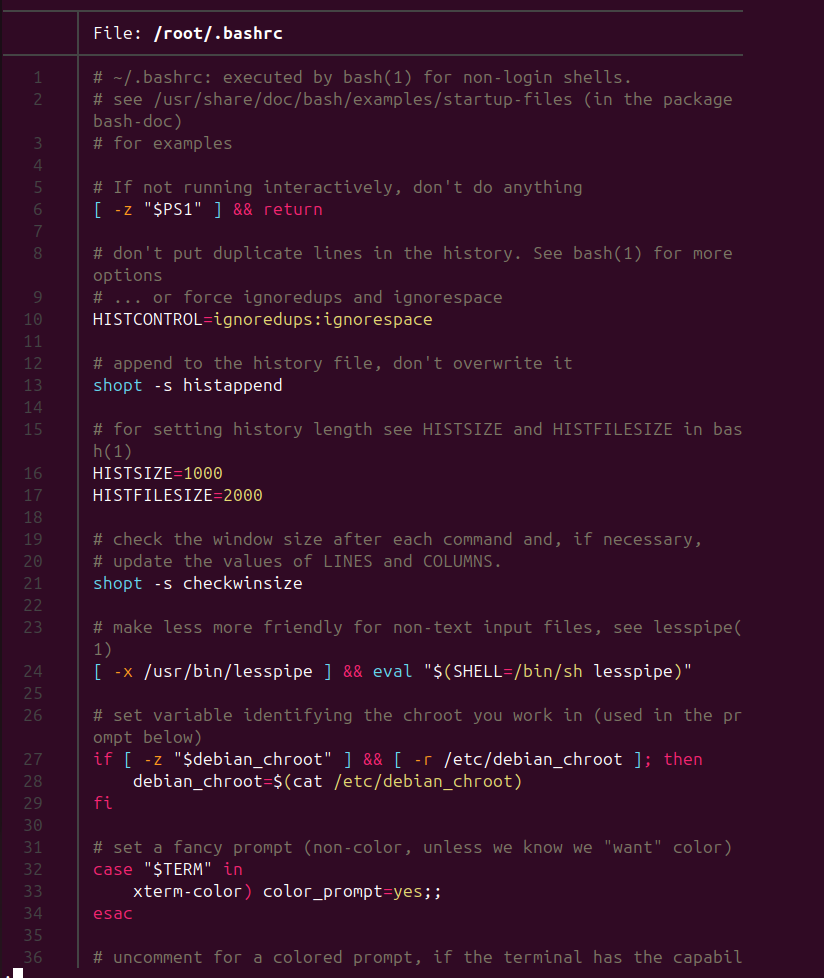
Unlike cat, bat provides syntax highlighting, line numbers, paging, and Git integration out of the box. These features are built directly into the tool, rather than layered on through external utilities and complex pipelines.
For interactive terminal usage, bat is almost always the better choice. For minimal environments, containers, initramfs, or strict POSIX shell scripts, cat still has an important role.
Installation
Installing bat is straightforward on most Linux distributions, and it’s usually available directly from your system’s package manager. Since bat is written in Rust, the binaries are lightweight, fast, and safe. Depending on your distribution, the installation process may vary slightly.
For Debian, Ubuntu, and Elementary OS, bat can be installed from the official repositories. On these systems, you may notice that the binary is named batcat instead of bat. This is a packaging decision to avoid conflicts with another package. You can still use bat by creating a simple alias:
sudo apt update
sudo apt install bat
For Fedora, bat is included in the official repositories, so installation is as simple as:
sudo dnf install bat
For Rocky Linux and AlmaLinux, which are RHEL-based distributions, bat is available via the EPEL repository. First, enable EPEL, then install bat:
sudo dnf install epel-release
sudo dnf install bat
On Arch Linux and Arch-based distributions, bat is available in the official repositories. You can install it using pacman:
sudo pacman -Syu batOnce installed, you can verify the installation by running:
bat --versionThis will show the currently installed version of bat and confirm that it’s correctly set up on your system. After installation, you can start using bat immediately, or even replace your cat workflow by adding:
alias cat='bat'This makes all cat commands automatically use bat with its syntax highlighting, line numbers, and other advanced features.
Main features of bat
Syntax highlighting
bat automatically detects the file type and applies syntax highlighting using a modern highlighting engine. This works for programming languages, configuration files, structured formats such as JSON and YAML, and even system files like systemd unit definitions.
Reading shell scripts or configuration files directly in the terminal becomes significantly easier, especially when working with complex syntax.
Line numbers
Line numbers are enabled by default. This small detail becomes extremely useful when debugging, reviewing changes, or referencing specific lines in documentation and issue reports.
There is no need to pipe output through additional tools just to get basic context.
Automatic paging
When output exceeds the terminal height, bat automatically enables paging. This prevents accidental terminal flooding when opening large files such as logs.
When bat detects that it is part of a pipeline or non-interactive command, paging is disabled automatically.
Git integration
When a file is located inside a Git repository, bat highlights added, modified, and untracked lines. This provides instant context when reviewing changes without running separate Git commands.
Pipeline awareness
bat respects traditional Unix pipelines. When used with standard input, output redirection, or inside scripts, visual features are reduced automatically to avoid breaking expected behavior.
Written in Rust
Being written in Rust, bat benefits from strong memory safety guarantees while remaining fast and efficient. It is actively maintained and available on most Linux distributions.
Why bat is called batcat on some Linux distributions
If you are running Debian, Ubuntu, Elementary OS, or derivatives, you may notice that the command is not called bat, but batcat. This is not a bug, a fork, or a packaging mistake. It is a deliberate decision made by Debian maintainers to avoid a name collision.
On Debian-based systems, the executable /usr/bin/bat was already claimed long ago by another package: the Bacula backup console. Because Debian strongly avoids breaking existing packages, the modern cat clone could not reuse the bat name.
Conflict resolution in Debian-based systems
To resolve this conflict cleanly, the maintainers renamed the executable to batcat while keeping the package name as bat. Functionally, nothing changes — it is the same tool, with the same features and behavior.
- The package is still installed as
bat - The binary is installed as
batcat - Documentation may refer to
bat, while your shell expectsbatcat
Using batcat directly
You can use batcat exactly as you would use bat:
batcat file.txtbatcat /etc/nginx/nginx.confAll options, flags, and behaviors remain identical.
The alias solution (recommended)
Most users simply alias batcat to bat, restoring the expected command name without modifying system files.
Add this line to your ~/.bashrc or ~/.zshrc:
alias bat="batcat"After reloading your shell, you can use bat normally. This is the safest and cleanest approach.
Using a symbolic link
If you prefer not to rely on shell aliases, you can create a local symlink:
ln -s /usr/bin/batcat ~/.local/bin/bat
Make sure ~/.local/bin is in your PATH. This approach works well for scripts and tools that explicitly call bat.
The situation on newer systems
In newer distributions, this issue is slowly disappearing. Starting with Debian 12 and Ubuntu 23.04, the naming conflict has been resolved in many setups, and the command may be available directly as bat.
However, since many systems are still running older LTS releases, batcat remains very common in real-world environments.
Summary: If your system uses batcat instead of bat, it is simply because another program claimed the name first. The tool is the same, the functionality is identical, and a simple alias restores the familiar workflow.
Basic and intermediate bat examples
View a file with syntax highlighting:
bat file.txtView multiple files at once:
bat file1.conf file2.confShow line numbers explicitly:
bat --style=numbers file.txtDisable paging:
bat --paging=never large.logPreview configuration files before editing:
bat /etc/nginx/nginx.confShow only a specific range of lines:
bat --line-range 20:50 file.txtInspect structured files:
bat config.jsonbat deployment.yamlView Git-modified files with context:
bat modified_script.shReplace cat interactively:
alias cat='bat'Advanced bat examples for power users
Disable all decorations for maximum compatibility:
bat --style=plain file.txtUse bat as a preview command in fuzzy finders or file managers:
bat --paging=never --style=numbers {}Inspect large log files safely:
bat /var/log/syslogCombine bat with grep while preserving readability:
grep "ERROR" app.log | batReview environment files safely:
bat .envForce a specific syntax manually:
bat --language=sh unknown_fileDisable Git integration when working with large repositories:
bat --no-git file.txtInspect files found recursively:
find . -name "*.conf" -exec bat {} +Preview Markdown files in the terminal:
bat README.mdPreserve script-friendly behavior explicitly:
BAT_PAGER=cat bat file.txtConclusion
Replacing cat with bat is not about rejecting traditional Unix tools, but about extending them in ways that match modern terminal workflows. bat preserves familiar behavior while adding readability, safety, and context.
After using bat daily, plain cat feels limited. Not incorrect — just minimal. For Linux users who spend a significant amount of time in the terminal, bat is one of those tools that quietly improves everything without demanding attention.






Pingback: ClipXDaemon: The Linux Clipboard Hijacker Targeting Cryptocurrency Wallets - iDoLinux
Pingback: How to Deactivate Caps Lock in Linux (Temporarily or Permanently) - iDoLinux
Pingback: Mastering the Linux tail Command: Real-Time Log Monitoring, Practical Examples, and Advanced Usage - iDoLinux
Pingback: Critical CUPS Vulnerabilities on Linux: How to Protect Your System - iDoLinux